In this guide, we’re going to show you how to get started with email by creating an account in Gmail.
You’ll need:
- a computer with internet access and a web browser installed on your computer
Follow these step-by-step instructions to create a Gmail account
Step 1: Go to Google
Open up your internet browser and go to the Google home page:
https://accounts.google.com/SignUp?service=mail&continue=https%3A%2F%2Fmail.google.com%2Fmail%2F%3Ftab%3Dwm<mpl=default
https://accounts.google.com/SignUp?service=mail&continue=https%3A%2F%2Fmail.google.com%2Fmail%2F%3Ftab%3Dwm<mpl=default
Step 2: Set-up
To set up your new account, Google needs some information about you – first, your first and last names. The ‘choose your username’ is the unique email address that you wish to use, which will be placed before ‘name_surname@gmail.com’. Because it needs to be unique, Google may have to check the availability of any name that you decide on to make sure that no one already has it. Type an email name into the ‘choose your username’ box and then fill out the rest of your information.
Example: sergio_perez@gmail.com
YOU HAVE TO USE YOUR NAME AND SURNAME OR I WILL NOT ACCEPT YOUR WORK.
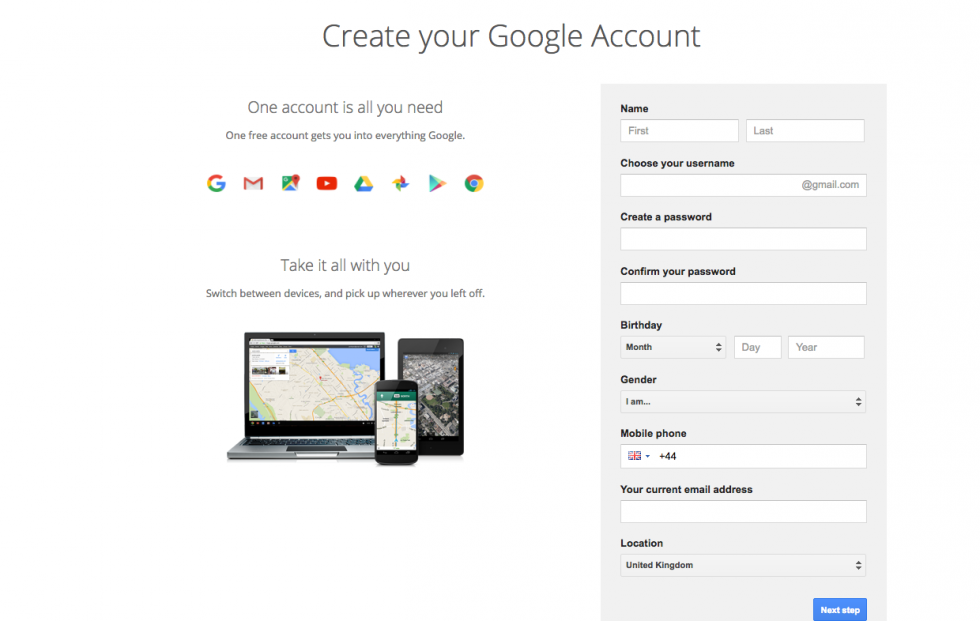
If the email name that you requested in is not available, you’ll get a message saying that somebody already has that username and offering you some alternatives. You can decide to accept one of the alternatives or type in another name and check its availability once more. You will have to complete some of the other boxes again. You may have to do this a few times. Once you finalise your email address, it’s a good idea to make a note of it so that you can refer to it until you remember it.
You’ll need to come up with a password so that you can log in securely to your account. Google may explain that you should try one with at least 8 characters long to be secure. Use letters and numbers to make the password more secure and difficult to guess. You can add an existing email address to keep your new email secure aswell.
Step 3: verification
To get to the next steps you will need to Accept Google's privacy and terms first, once you have read it click on I Agree.
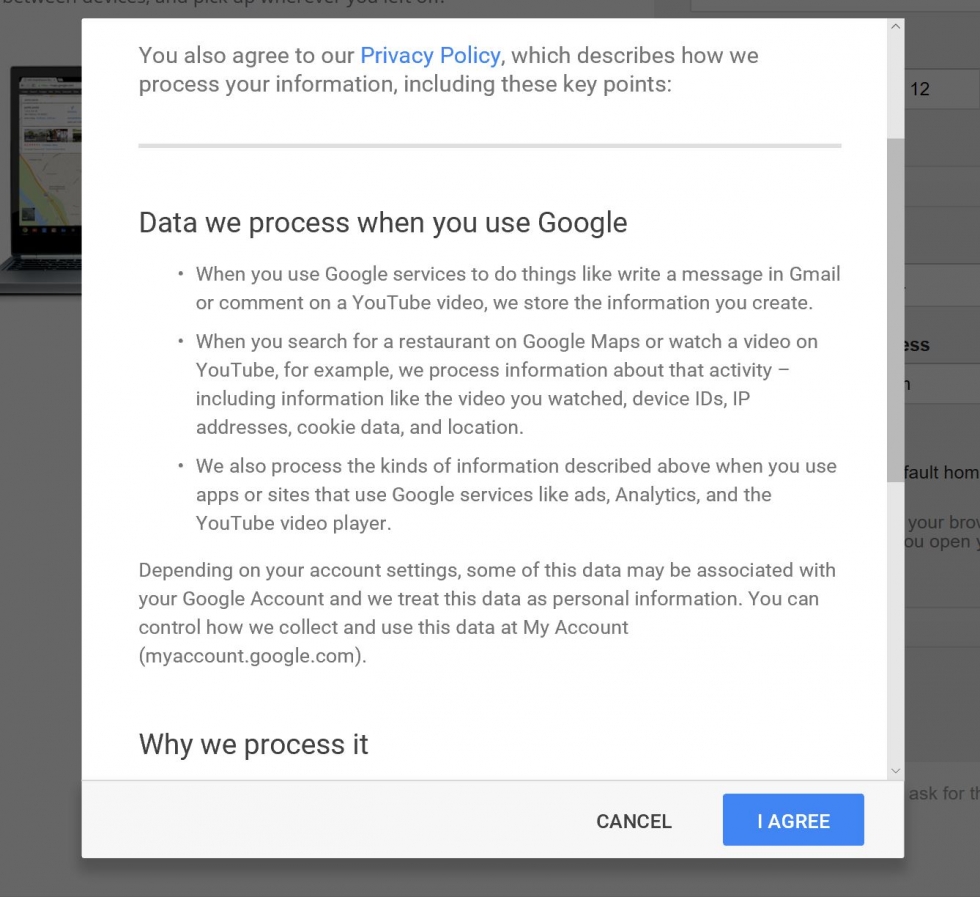
Google will now ask you to verify your account via text or voice call, select the option that you want and click on Continue.
FINAL TASK
Once you have create your account, YOU MUST SEND ME AND EMAIL TO "rjuaniz@fomento.edu"
In the email you must indicate your group. 2ºESO A, B or C

No comments:
Post a Comment